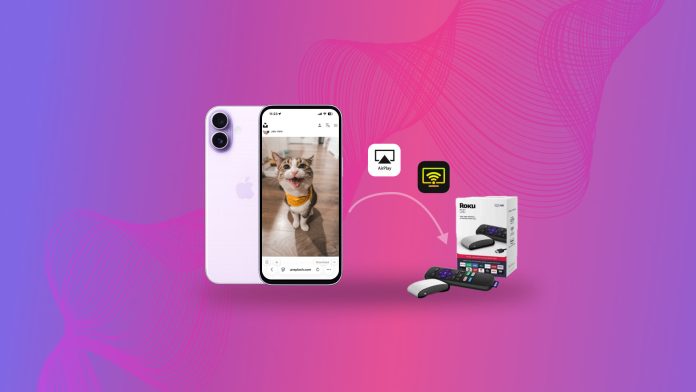
Want to mirror your iPhone to a Roku TV or Roku Stick to watch content on a bigger screen? In fact, the process is very straightforward. If your Roku device supports AirPlay, you can mirror your iPhone without installing any extra apps. If it doesn’t, you still have several alternative screen mirroring options to choose from.
If you’re not familiar with these methods or unsure which one works best for your setup, this article breaks down the best solutions for screen mirroring iPhone to Roku in 2026 and explains how each option works in practice.
Table of Contents
Method 1. How to Mirror iPhone to Roku TV with AirPlay
Can iPhone screen mirror to Roku without using any additional app or accessory? Yes, the easiest way to mirror an iPhone to a Roku TV is to use AirPlay. This feature lets you fully mirror your iPhone’s screen in real time, making it easy to watch movies and shows, view videos and photos, or listen to music on a larger display. However, for this method to work, the Roku device itself must support AirPlay.
Step 1. Check If Your Roku Device Supports AirPlay
Before you can use AirPlay, you need to confirm that your Roku device supports this feature. To do that, you first have to check both the device model and the software version it runs on. You can find this information on your Roku by going to Settings > System > About. Once you see the device model and Roku OS version, take note of them and compare your device with the tables below.
The following Roku devices support AirPlay if they are running Roku OS 9.4 or newer:
| Device | Model |
| Roku TV™ | Axxxx, Cxxxx, CxxGB, 7xxxx |
| Roku Streambar® | 9102 |
| Roku Streambar Pro | 9101R2 |
| Roku Smart Soundbar | 9101 |
| onn.™ • Roku Smart Soundbar | 9100 |
| Roku Streaming Stick®+ | 3810, 3811 |
| Roku Streaming Stick 4K | 3820 |
| Roku Streaming Stick 4K+ | 3821 |
| Roku Express 4K | 3940 |
| Roku Express 4K+ | 3941 |
| Roku Premiere | 3920, 4620 |
| Roku Premiere+ | 3921, 4630 |
| Roku Ultra | 4600, 4640, 4660, 4661, 4670, 4800, 4802, 4850 |
| Roku Ultra LT | 4662, 4801 |
For the devices listed below, Roku OS 10.0 or newer is required for AirPlay support:
| Device | Model |
| Roku TV | 5xxx, 6xxx |
| Roku Express | 3700 |
| Roku Express+ | 3710 |
| Roku 4 | 440 |
If you own a Roku Select Series TV or Roku Plus Series TV, these models support AirPlay regardless of the Roku OS version, so you can use AirPlay without worrying about software requirements.
If you find your Roku device in the tables above, you can continue with this section and enable AirPlay. If your device is not listed, AirPlay is not supported on your model. In that case, skip ahead to Method 2, where we cover third-party screen mirroring options.
Step 2. Enable AirPlay on Your Roku
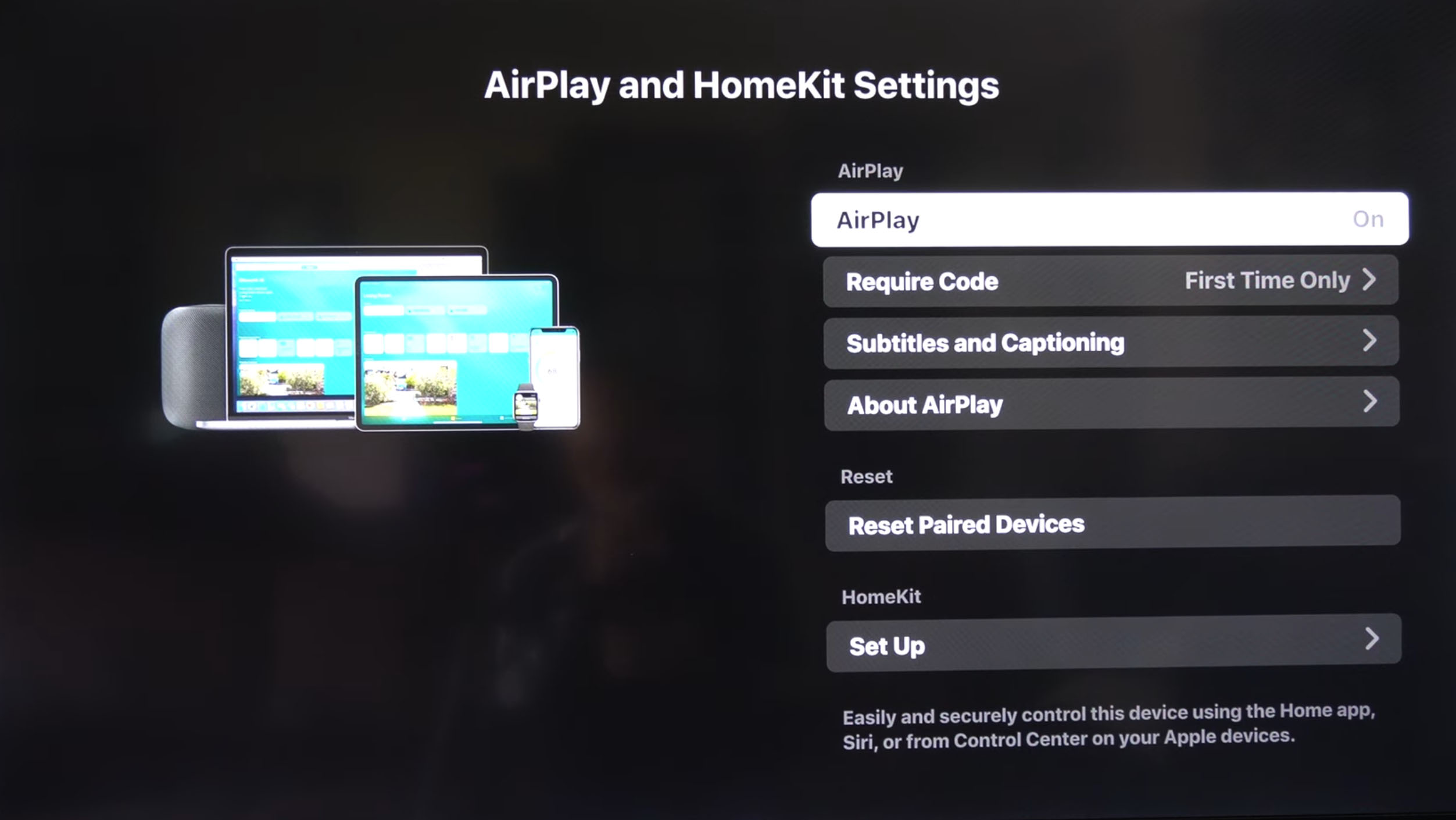
To enable iPhone screen mirroring, AirPlay must also be enabled on the Roku device. If AirPlay is turned off, the connection will not be established.
Step 1: On the homepage on your Roku device, scroll down to Settings.
Step 2: Look for Apple AirPlay and HomeKit in the settings.
Step 3: Enable the AirPlay toggle by pressing OK on your Roku remote.
Step 3. Enable AirPlay on Your iPhone to Mirror the Screen
Now that all the previous settings are in place, all that’s left is to choose the content you want to view on your Roku device and enable AirPlay on your iPhone. Once AirPlay is turned on, your iPhone’s screen will be mirrored to Roku in real time.
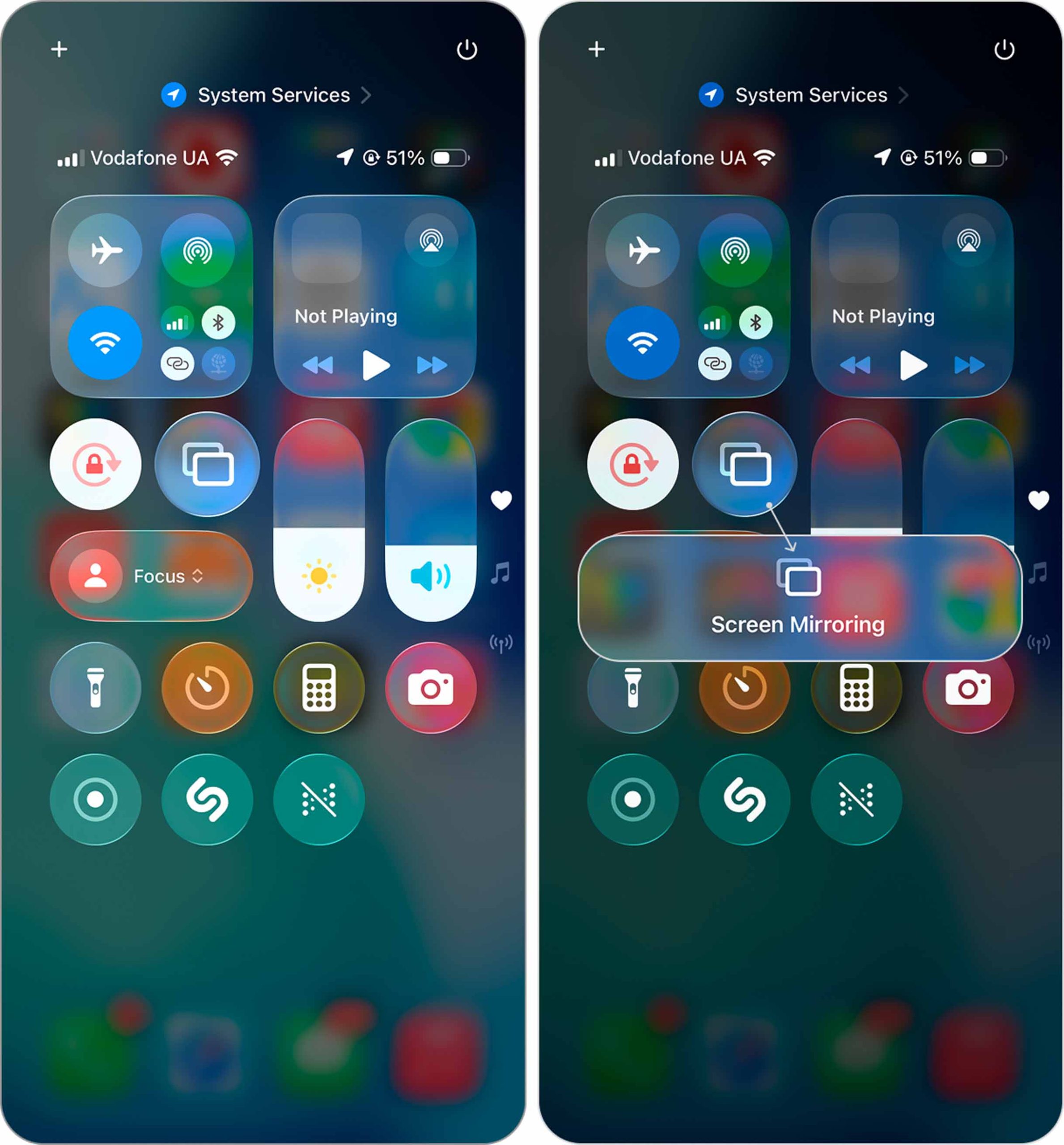
Step 1: Swipe down from the top-right corner to open the Control Center.
Step 2: Tap the Screen Mirroring icon to open a list of devices you can AirPlay to.
Step 3: Select your Roku device to start mirroring your iPhone’s screen to it.
What to Do When Roku Doesn’t Detect AirPlay?
There are a couple of things you can do if your Roku can’t connect to your AirPlay-compatible device. First, check if your iPhone and Roku are connected to the same WiFi network and you’re not connected to a VPN server.
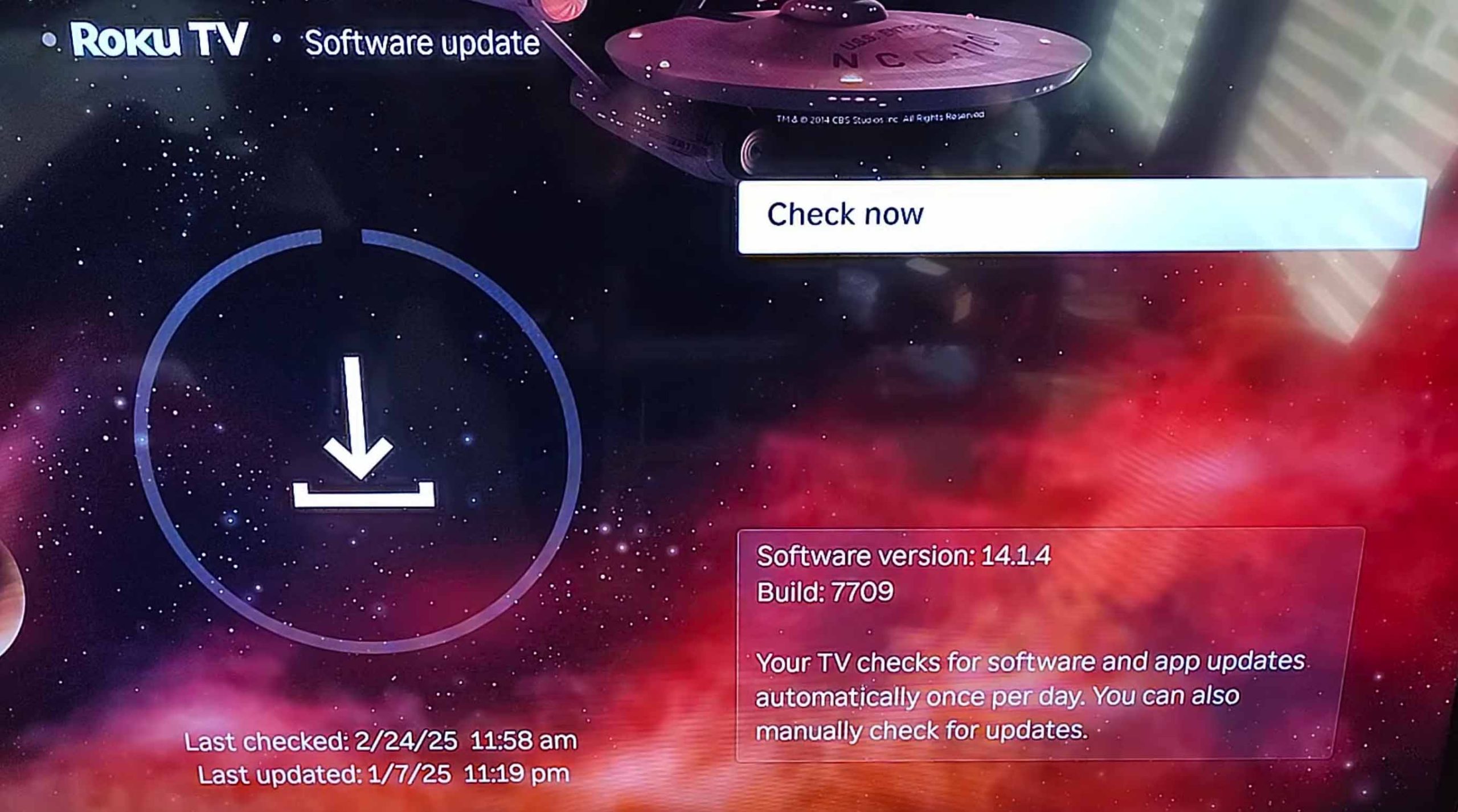
Second, open your Roku’s settings and check for updates. Go to Settings > System > Software update to see if there are any new updates available. Remember, most Roku devices need to be on either Roku OS 9.4 or Roku OS 10.0 to be able to support AirPlay.
If the problem persists, go to Apple AirPlay and HomeKit > About AirPlay and click on Reset Paired Devices. Go back, turn off AirPlay, and then restart your Roku device by unplugging it from power for a few moments, then plug it back in.
Method 2. How to Mirror iPhone to Roku Without AirPlay
If you’re reading this section, your Roku device likely doesn’t support AirPlay. That doesn’t mean screen mirroring is off the table. There are plenty of third-party apps that can replicate AirPlay-like functionality and let you mirror your iPhone to Roku.
To avoid overcrowding this article with multiple third-party apps, we’ll demonstrate how this type of solution works using DoCast, one of the most user-friendly apps for mirroring an iPhone to Roku. In addition to screen mirroring, DoCast also lets you stream offline photos, videos, and music from your iPhone.


Here’s how to screen mirror iPhone to Roku TV using DoCast:
Step 1: Download DoCast on your iPhone and Roku TV.
Step 2: Open the app on your iPhone and let it look for nearby streaming devices.
Step 3: Tap your Roku device.
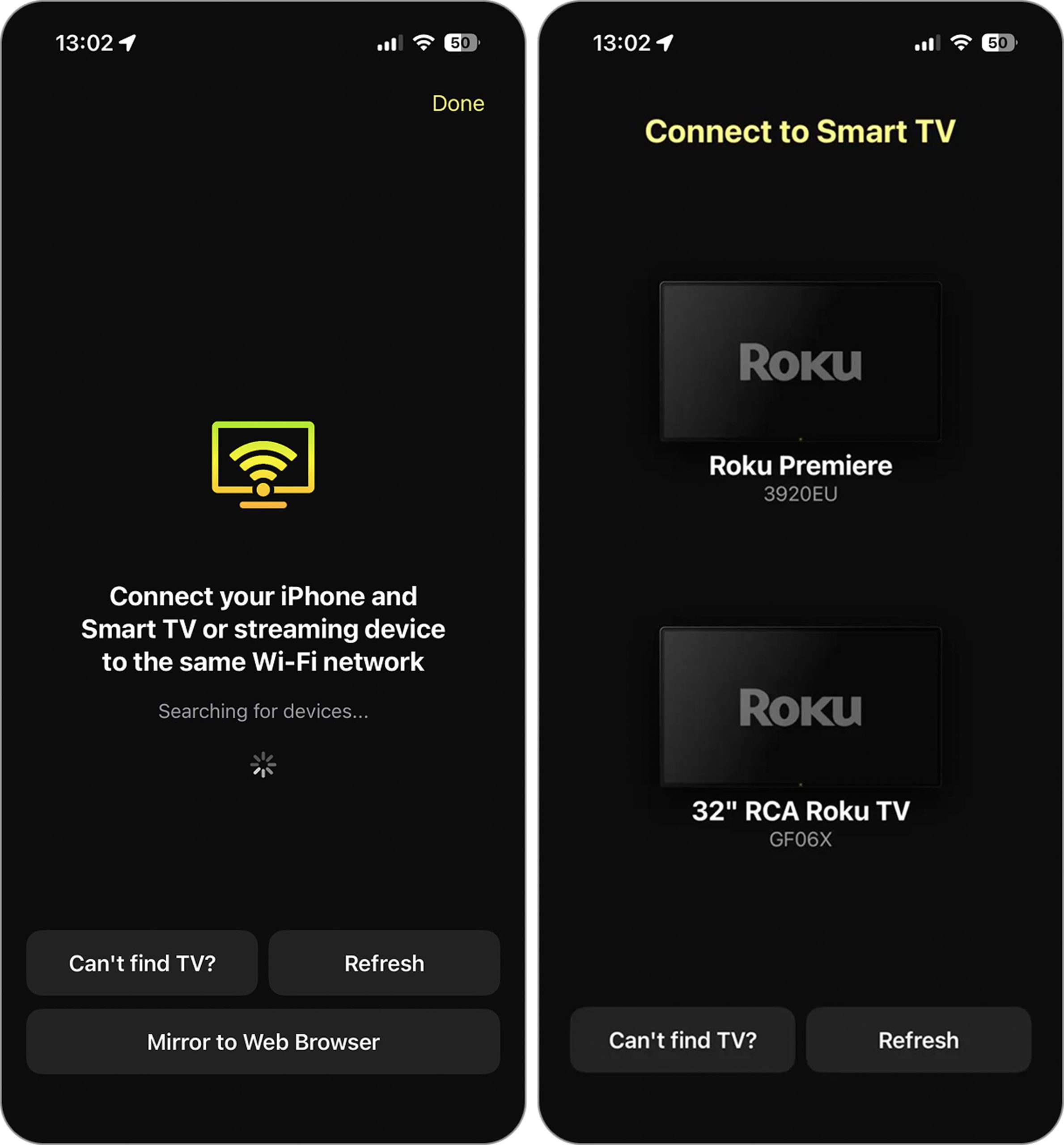
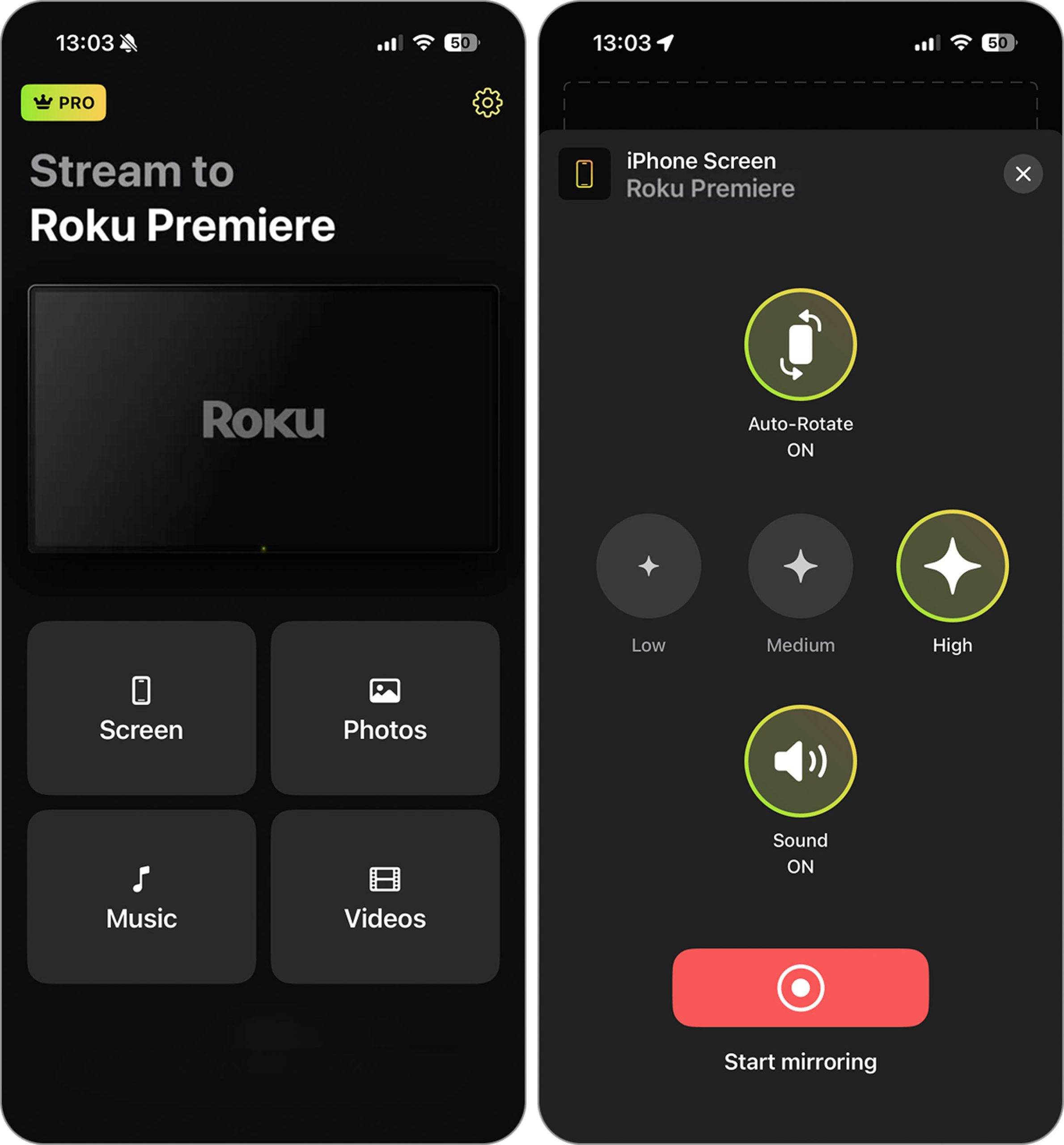
Step 4: In the main menu of the app, tap Screen.
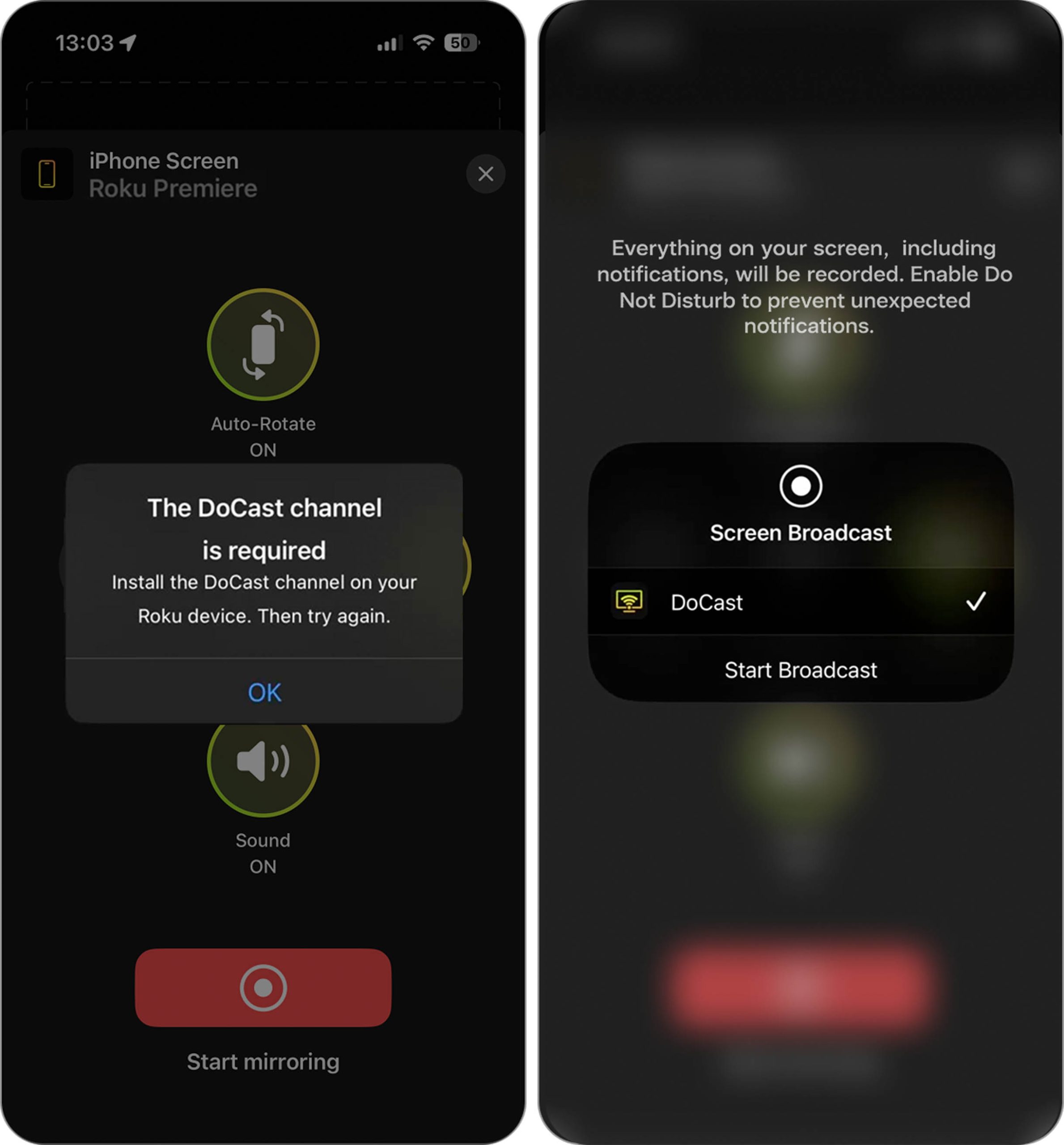
Step 5: Adjust the settings and then tap Start mirroring.
Step 6: If you haven’t already downloaded the DoCast channel on Roku, you’ll see a pop-up asking you to download it before you can continue with the mirroring.
Step 7: Tap Start Broadcast to begin mirroring.
The free version of DoCast comes with usage limits, so if you want unlimited iPhone screen mirroring to Roku, you’ll need the Pro version. Pricing starts at $7.99 per week, with annual and lifetime plans also available. Regardless of whether you’re using the free version or the premium one, DoCast offers compatibility not only with Roku but also with Chromecast, Fire TV, and DLNA-enabled TVs.
How to Fix Screen Mirroring Not Working on Roku?
If you can’t get your iPhone to mirror its screen to your Roku, here are some things you can do:
- ✔️ Make sure that your iPhone and Roku are connected to the same Wi-Fi and there is no VPN enabled.
- ✔️ Read the app description you’re using to see if you need to download its channel on Roku for screen mirroring to work. Generally speaking, most apps will let you know if you do before you start a mirroring session.
- ✔️ Update the third-party app you’re using to mirror your iPhone’s screen as the newer version may include bug fixes and improved compatibility.
- ✔️ Try using a different third-party app to see if the problem persists.
- ✔️ Make sure the app is compatible with your specific Roku model, as not all apps support all Roku models.
Conclusion
All in all, Roku is an excellent device for streaming and screen mirroring. It’s small, easy to use, and has a great interface. Most models support AirPlay, so you won’t need any additional app to mirror your iPhone’s screen to it. Open the Control Center and pick your Roku device in the list of compatible mirroring devices.
Older models don’t have AirPlay, so you’ll need to use a third-party app like DoCast. It’s one of the best apps you can use to mirror your iPhone’s screen to Roku and stream offline videos, photos, and music.
In case you run into any problems, just make sure that the Roku device is updated to the latest version and it’s connected to the same Wi-Fi network as your iPhone.