Most of us are used to watching content directly on an iPhone or iPad. However, there are plenty of situations where a small screen just isn’t enough (viewing photos or shows with friends, showing presentations at work, etc.), and displaying what’s happening on your device on a TV makes much more sense.
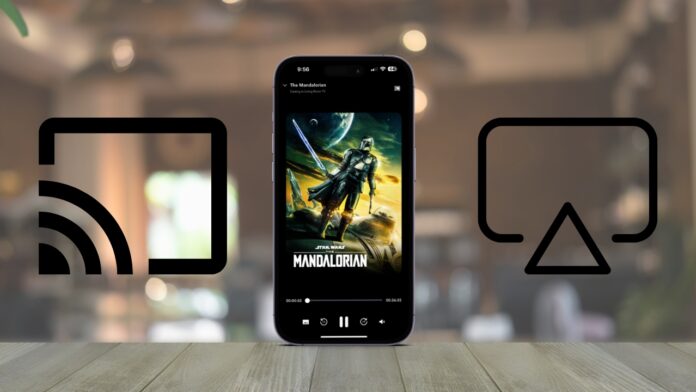
At first glance, Apple AirPlay seems like the obvious solution. It’s a well-known Apple feature designed for wireless streaming and screen mirroring. But once you actually try to use it with a Chromecast device, the problem becomes clear – AirPlay does not work with Google Chromecast. Because of this, the only real option is to look for alternative ways to display iPhone content on a Chromecast-enabled TV. So, below, we’ll walk through the available workarounds and find at least one method that works for you.
Table of Contents
Why AirPlay Doesn’t Work With Chromecast?
Apple AirPlay and Google Chromecast were built with completely different technologies and goals in mind.
AirPlay is Apple’s proprietary wireless streaming protocol. It allows iPhones and iPads to send video, audio, or a mirrored screen directly to devices that explicitly support AirPlay, such as Apple TV or AirPlay-enabled smart TVs.
Chromecast works in a very different way. Instead of acting as a wireless display, it relies on Google’s Cast technology, where the TV or streaming device pulls content directly from the internet after receiving a command from your phone. In this setup, your iPhone acts more like a remote control than a video source.
Before You Start Set Up Your Chromecast
Simply reviewing the AirPlay to Chromecast methods below won’t be enough if your Chromecast hasn’t been set up properly. Before any third-party app or casting workaround can work, your Chromecast must be connected to your TV, linked to Wi-Fi, and ready to receive casting requests.
Probably don’t need this part if it’s been set up before and already linked to Wi-Fi. Head straight to what comes next instead.
Step 1: Start by connecting your Google Chromecast to an open HDMI slot on the television. Draw power either through the TV’s USB outlet or a plug-in charger. Switch the TV on, then pick the matching HDMI source to see the display.
Step 2: Get Google Home through the App Store ( without it, setup won’t go forward).
Step 3: Launch Google Home. Log into your Google account there. A fresh Chromecast in the area will likely show up without any extra steps. Choose Set up device when it appears. Go through each prompt exactly as shown on screen.
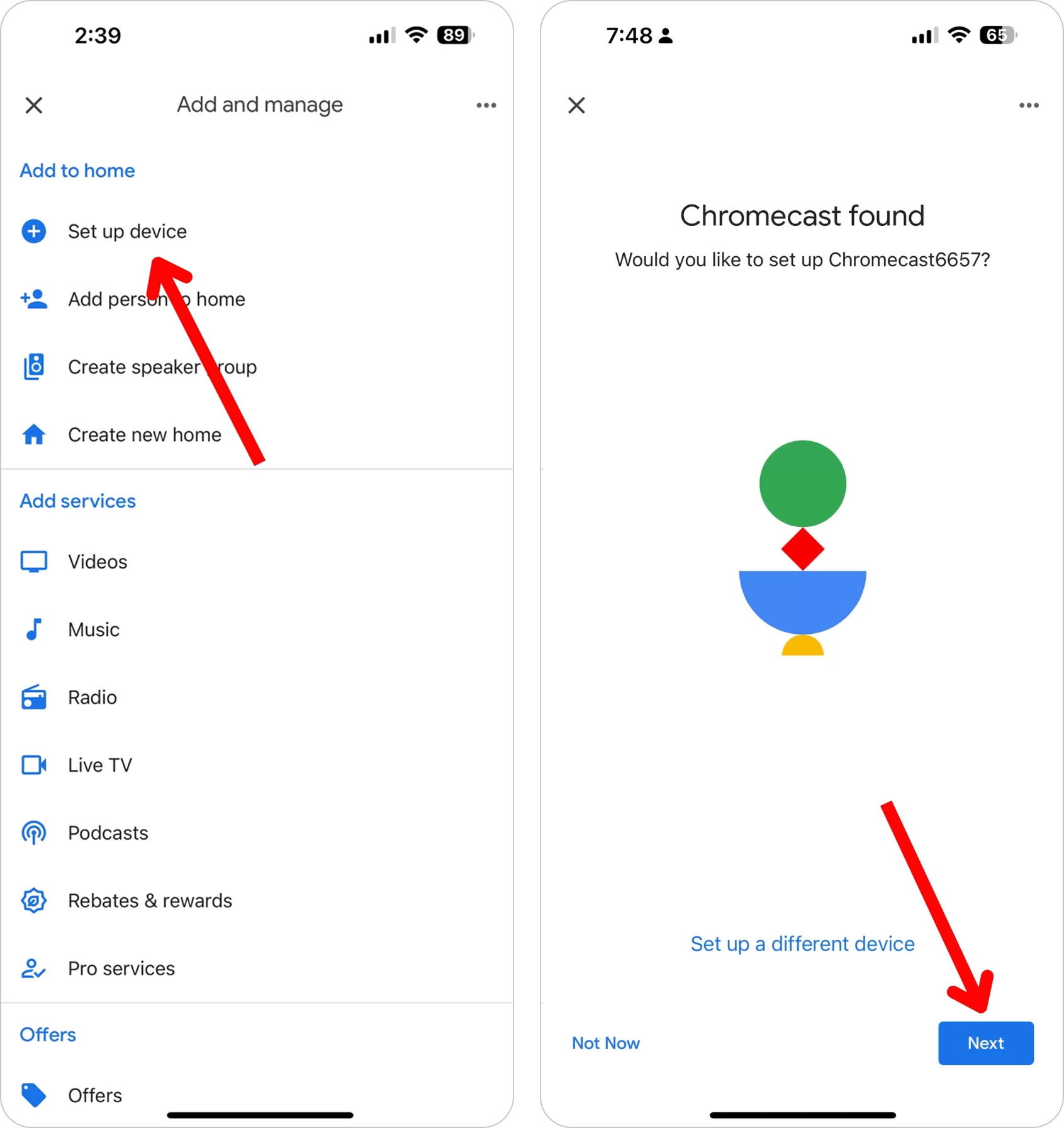
Step 4: Pick a Wi-Fi name matching the one your iPhone connects to. This network must be identical for both devices.
Step 5: When the setup ends, the Chromecast home screen appears on your TV. Now, it can accept casted content or mirrored screens through compatible applications.
How to AirPlay on Chromecast
Now that the basic setup is complete and the limitations of AirPlay and Chromecast are clear, we can move on to the available methods. All of the options below rely on third-party apps, and while these solutions follow the same general idea, they differ in the type of content they support (some focus on full-screen mirroring, others work better for local video files or web-based streaming).
Method 1: Use an iPhone Screen Mirroring App
Best used when: you need to display your iPhone screen on a TV or cast local photos, videos, or music.
Since Apple AirPlay does not work with Google Chromecast, one of the best alternatives is a screen mirroring app. These apps rely on screen recording or media casting instead of native AirPlay.
There are many screen mirroring apps available on the App Store, but one of the most popular options is DoCast. It offers a clean, minimal interface and includes everything you need to make it feel like Chromecast supports AirPlay, including screen mirroring and personal photo, video, and music casting.

Follow these steps to get the app working:

Step 1: Download the DoCast iPhone mirroring app from the App Store.
Step 2: Launch the app and select your Chromecast device from the list.
Step 3: The next screen allows you to access screen mirroring and casting features. Select the screen function to launch an AirPlay from Chrome-like screen mirroring experience.
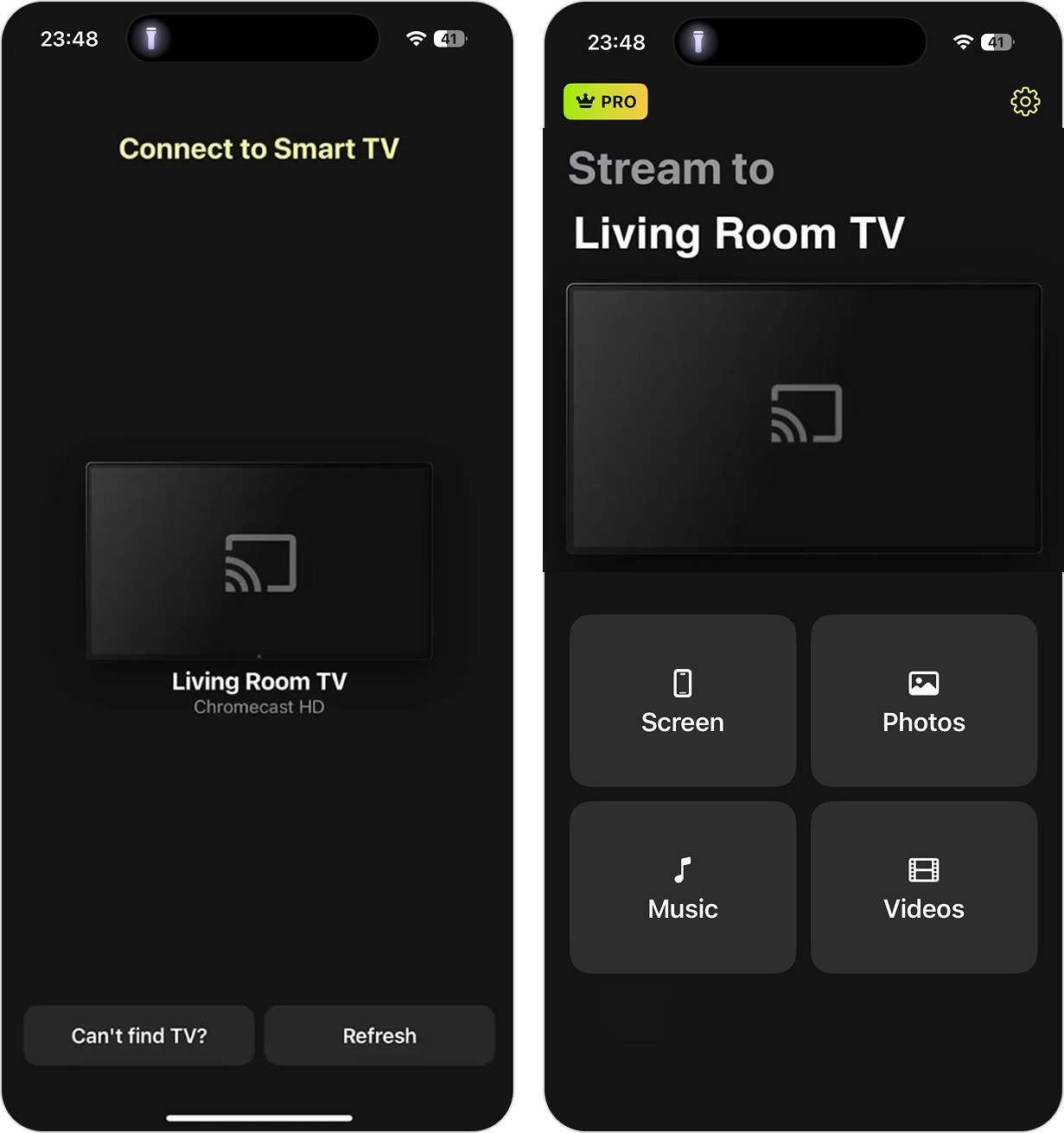
Step 4: Tap the Start mirroring button at the bottom of the screen and then tap Start Broadcast.
Step 5: To stop mirroring, return to the application and tap Stop mirroring, then Stop Broadcast.
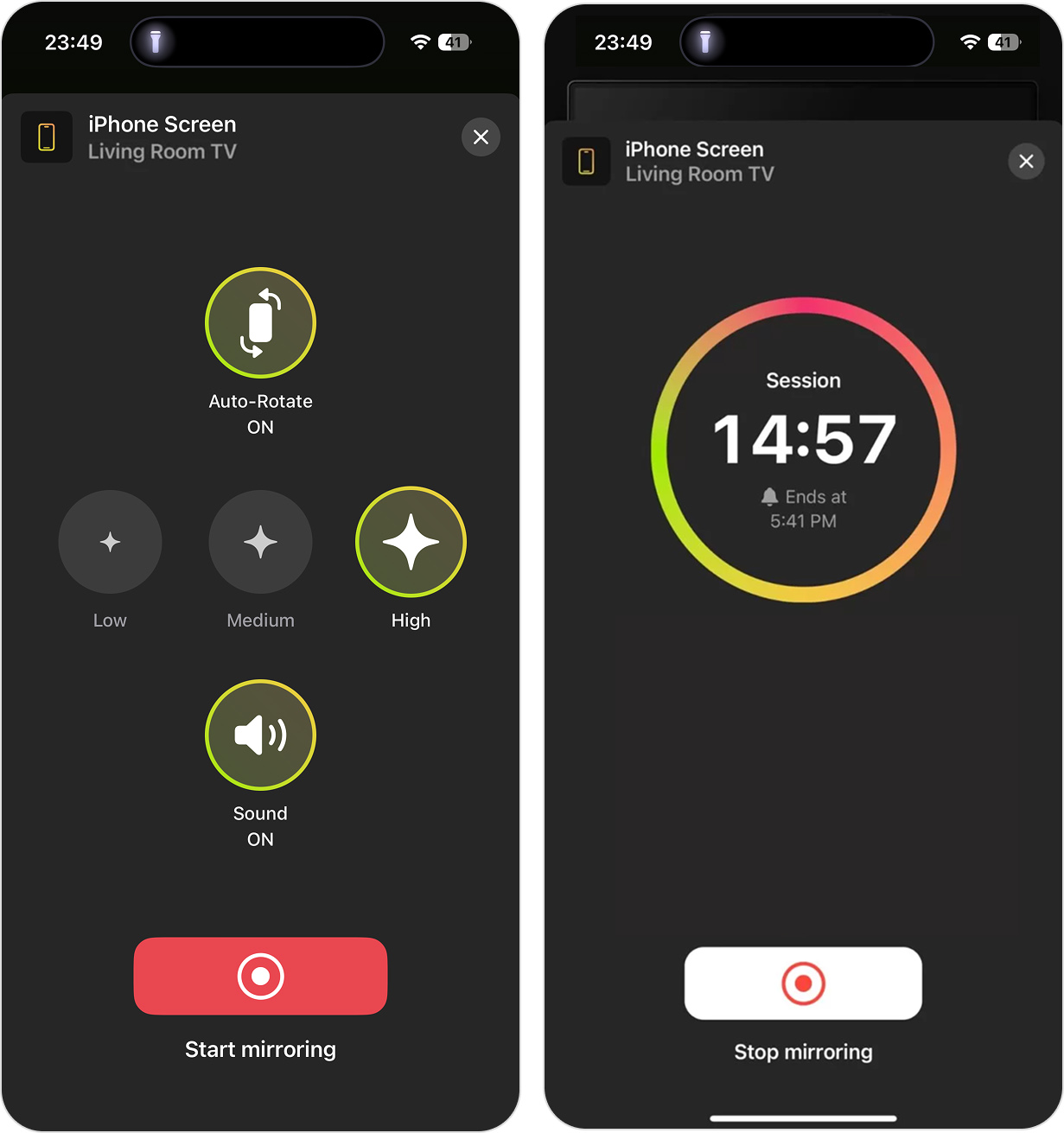
DoCast is free to download and use, but it comes with certain limitations. To remove time restrictions and unlock unlimited screen mirroring, you’ll need to upgrade to a premium subscription.
Method 2: Use Web-Based Casting Tools
Best used when: you want to display online videos from websites on your TV using Chromecast.
While DoCast covers most everyday scenarios where you need to mirror your iPhone screen or cast local photos, videos, or music, it does not support browser-based video casting. If your goal is to play videos directly from websites, a different type of solution is required.
That’s where web-based casting tools come in. One popular option is Replica. Although it also includes screen mirroring features, this method focuses specifically on its ability to cast web-based video content using an in-app browser.
Step 1: Download Replica from the App Store and launch the app. Allow access to your local network so it can detect your Chromecast device.
Step 2: Open the built-in web browser inside Replica. Navigate to the website that hosts the video you want to watch.
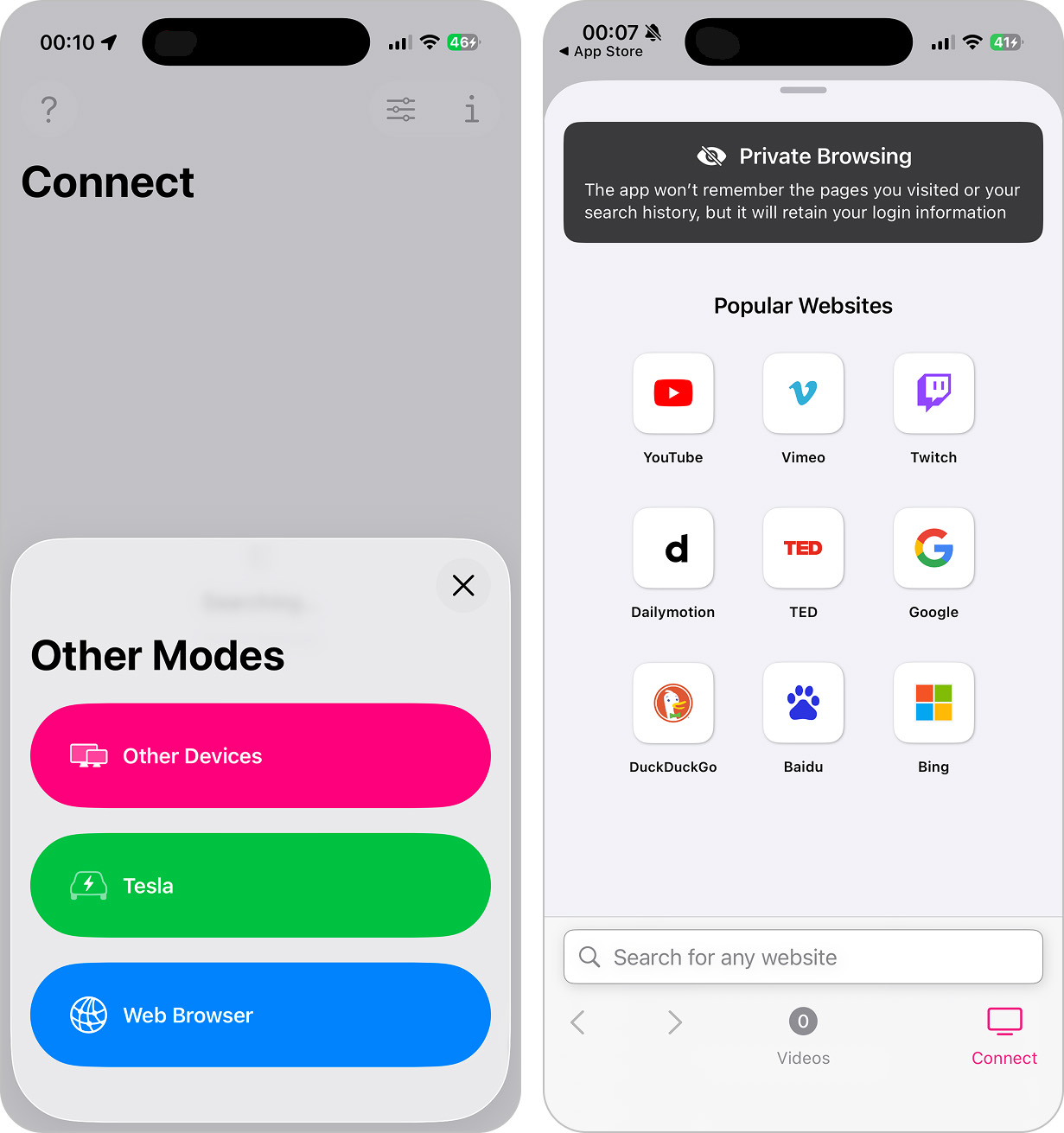
Step 3: Start video playback in the browser, then tap the Cast button and select your Chromecast device. The video will begin playing directly on your TV.
Like DoCast, Replica is free to download and try, but the free version includes time limits, watermarks, and ads. To remove these restrictions and unlock uninterrupted casting, you’ll need to upgrade to the premium version.
Method 3: Use VLC Media Player
Best used when: you want a completely free way to cast local video files from your iPhone to a Chromecast-enabled TV.
VLC is best known as a powerful media player, but it also includes built-in support for Chromecast casting. This makes VLC a solid option if your goal is to play local video files on a TV without paying for a subscription or using screen mirroring apps.
But this option has a limitation – VLC can only cast video files that are stored inside the Files app. It does not mirror your iPhone screen and cannot access videos directly from the Photos app. However, you can transfer videos into Files in advance and then cast them to your TV.
To cast local videos using VLC:
Step 1: Download VLC from the App Store and open the app on your iPhone.
Step 2: When you first open VLC, the Video tab may appear empty. This is normal, as videos must be imported manually. Open Browse > On My iPhone, then import your video files into the VLC folder.
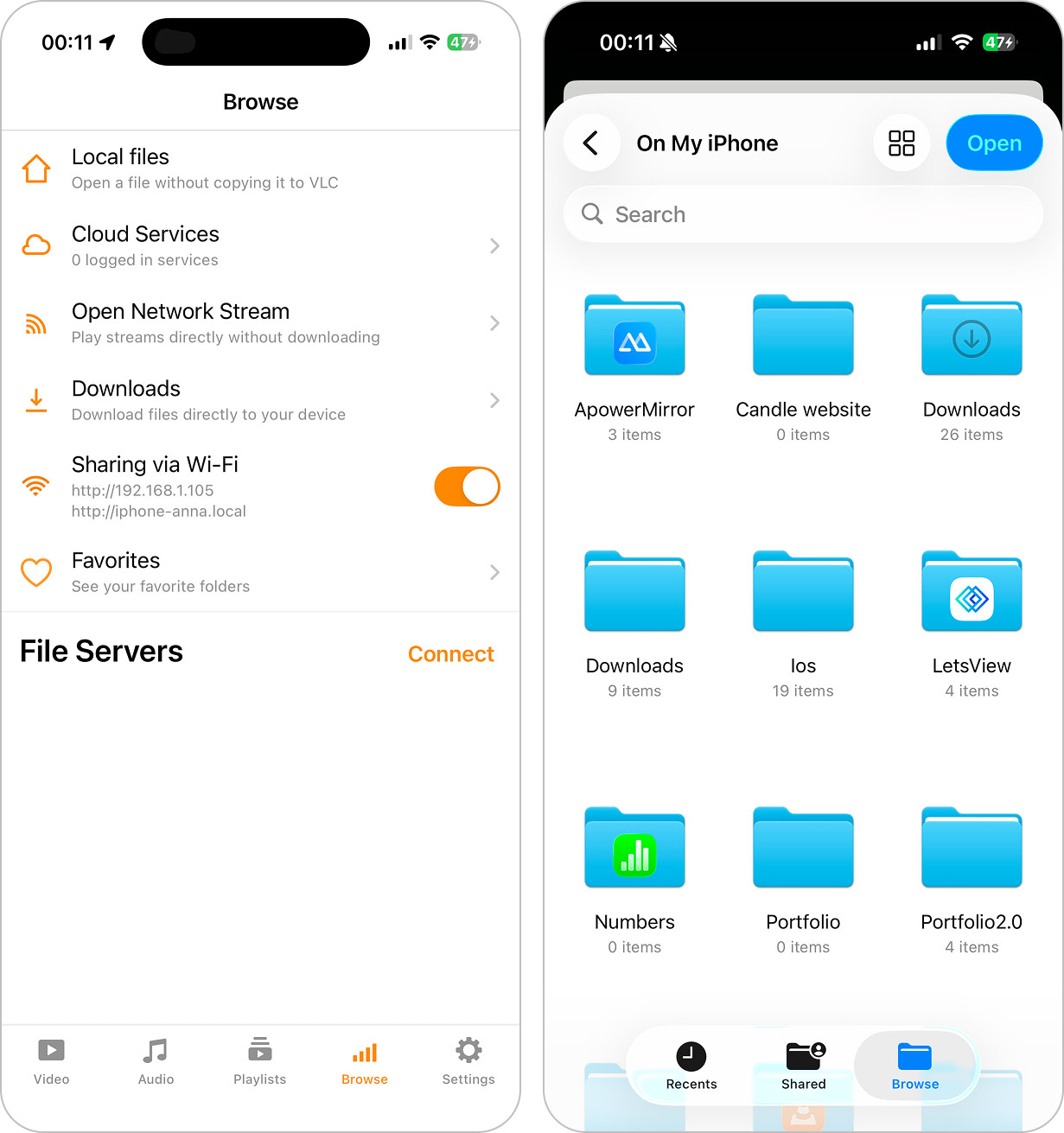
Step 3: Open a video in VLC, then tap the Cast icon in the top corner of the screen.
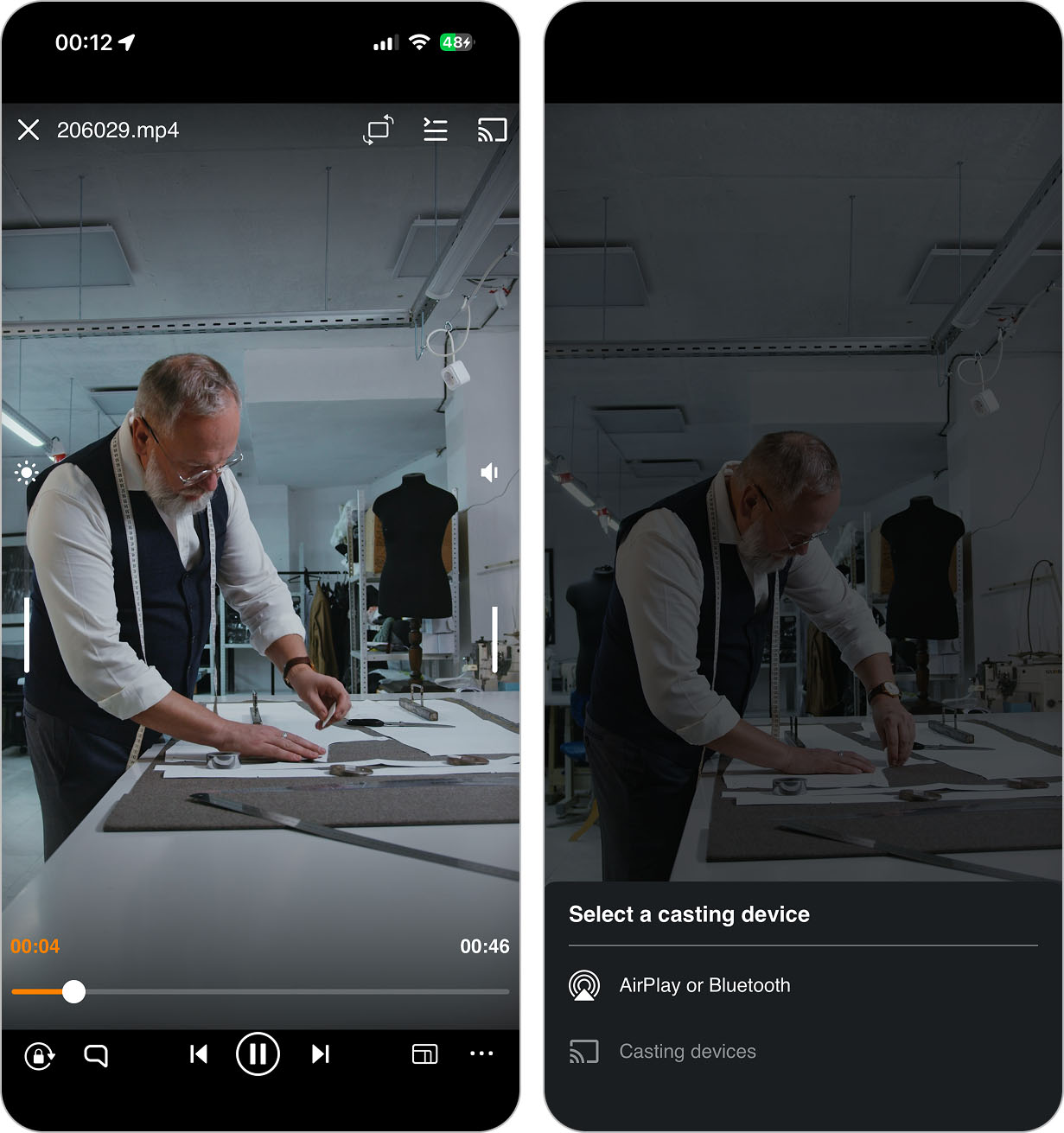
Step 4: After connecting, the video will start playing directly on your TV. You can control playback (pause, resume) from within the VLC app on your iPhone.
Method 4: Use Chromecast’s Native Casting Feature
Best used when: you want to stream content from popular apps without installing any additional tools.
Some iOS apps already include built-in support for Google Chromecast. Streaming services such as YouTube and Netflix allow you to cast content directly to your TV using Chromecast’s native Cast feature. In these cases, you don’t need screen mirroring apps or web-based casting tools at all.
This method doesn’t use Apple AirPlay. Instead, your iPhone simply sends a playback request, and the TV streams the video directly from the internet. Your phone acts as a remote control rather than a video source.
Below, we’ll use YouTube as an example, but the same steps apply to most Chromecast-supported streaming apps:
Step 1: Open the YouTube app on your iPhone and make sure your Chromecast-enabled TV is turned on and connected to the same Wi-Fi network.
Step 2: Find the video you want to watch and tap the Cast icon usually located in the upper-right corner of the screen.
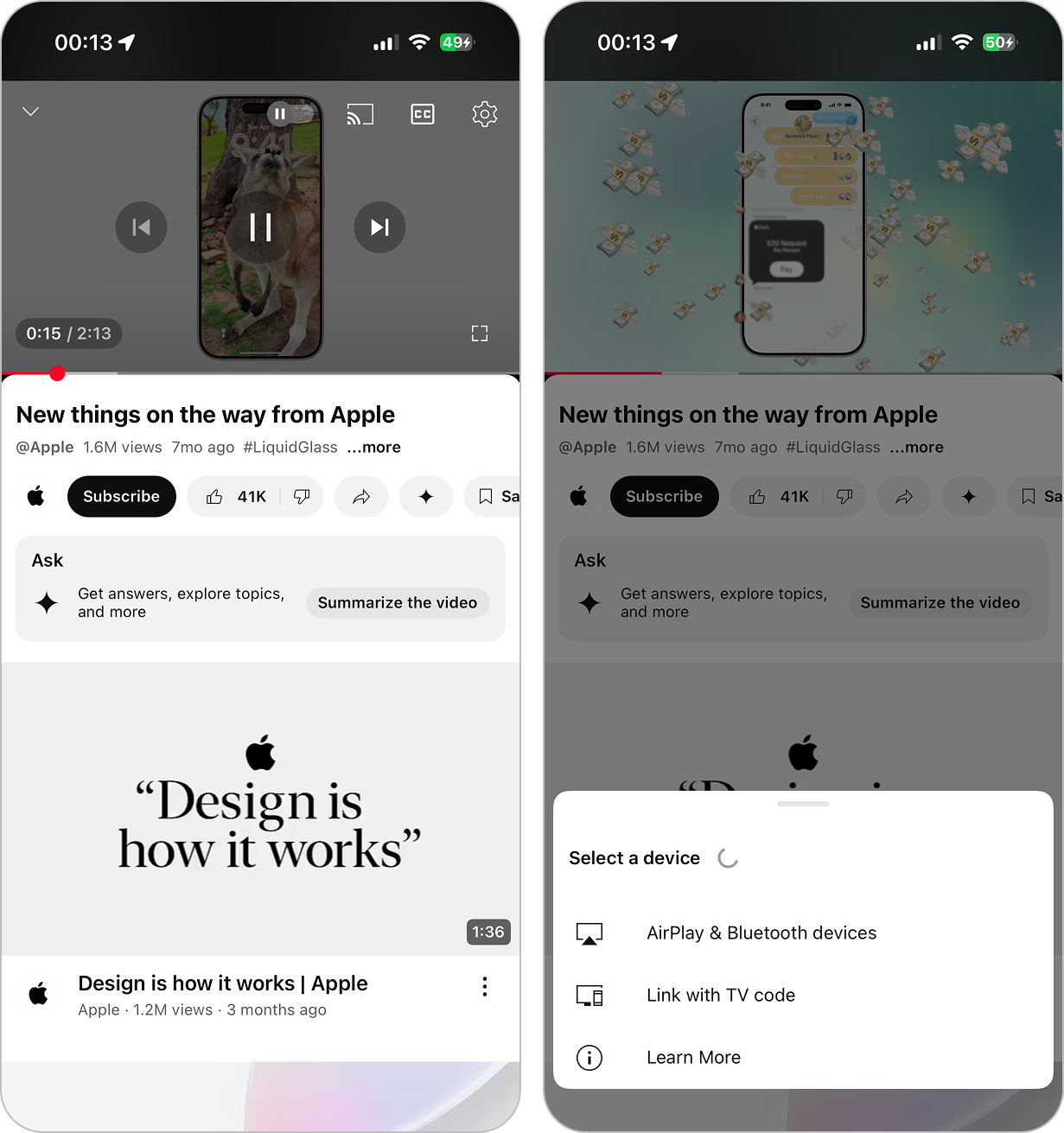
Step 3: Select your Chromecast device from the list of available devices.
Step 4: The video will start playing directly on your TV. To stop casting, tap the Cast icon again and choose Stop casting.
Have an Apple TV or AirPlay-Compatible TV? Use AirPlay Instead
A Chromecast app for iOS is a great way to mirror your iPhone’s screen, but nothing beats AirPlay – the iPhone’s native method of screen mirroring and casting. If you have a device that’s compatible with AirPlay, such as Roku or Apple TV, then you can easily cast anything with your phone. Let’s take a look at how to do that:
Step 1: Launch your iPhone’s Control Panel by swiping down from the upper right-hand corner or from the bottom (iPhone SE only).
Step 2: From the Control Panel, select the AirPlay button.
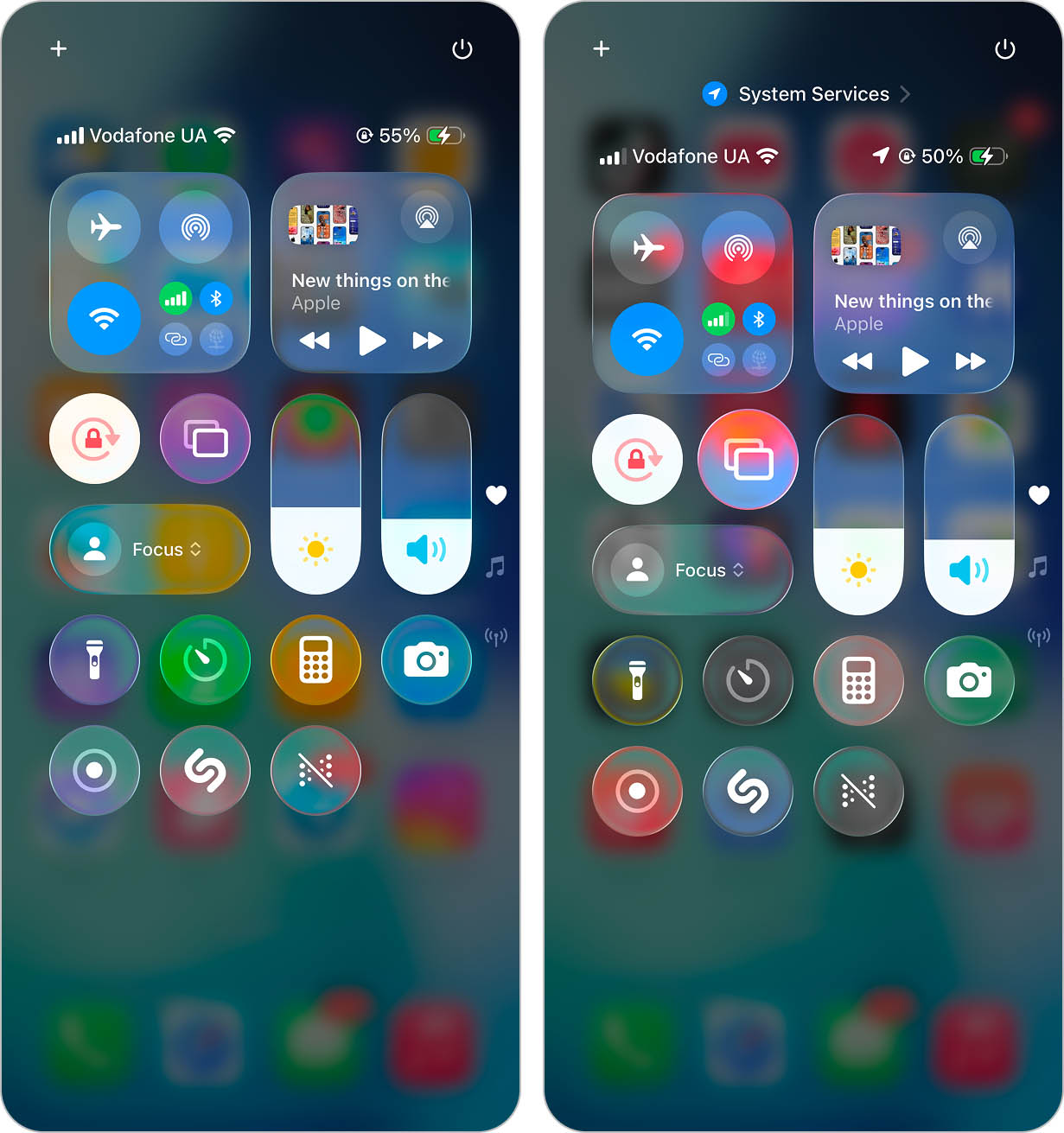
Step 3: Select the device you want to display your iPhone’s screen on. You may need to download the AirPlay TV app for certain devices, like Roku. Search for and install the required app on your smart TV or device.
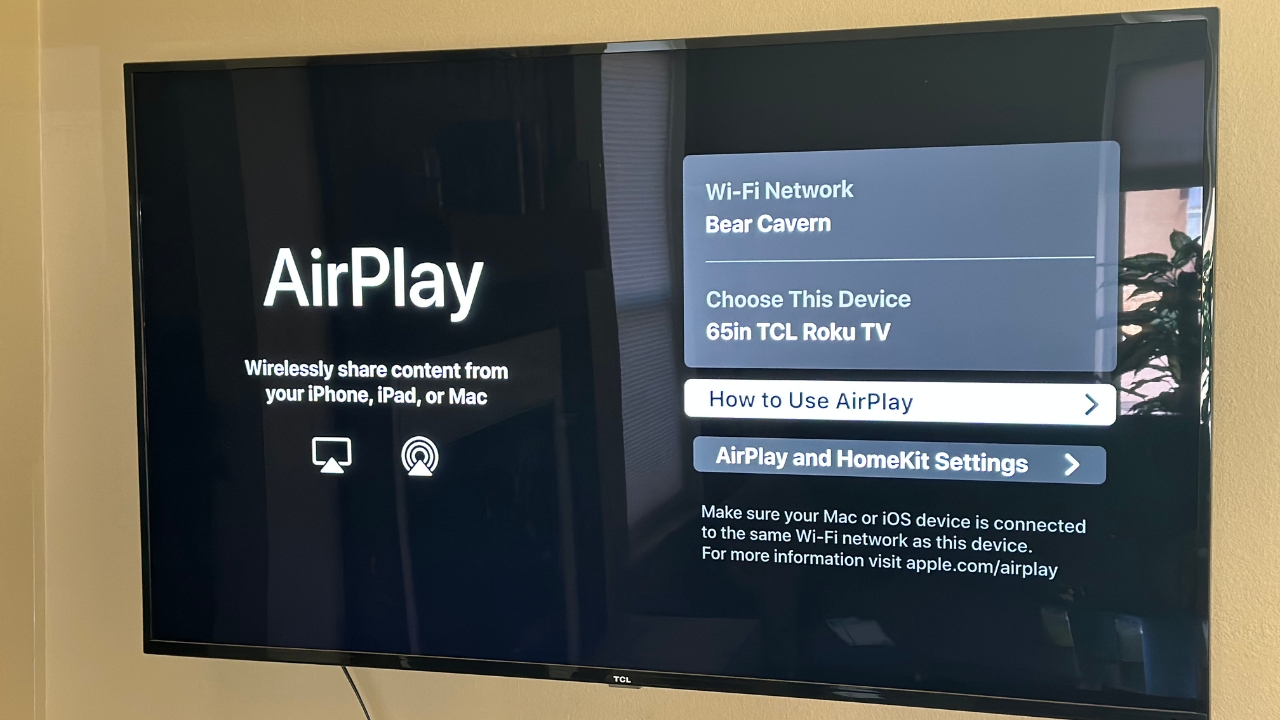
Step 4: Once connected, your TV will mirror your iPhone’s screen, but certain apps with DRM protection will cause the mirroring to stop. You can also use AirPlay to control content. By tapping the AirPlay button on the media controls, you can then cast to device iPhone.
Final Thoughts on Using AirPlay with Chromecast
The tech battle that continues to rage between Google and iOS users won’t stop until the end of time, but that doesn’t mean the two are totally incompatible. DoCast, Google Home, Replica, and iWebTV all make it possible to use an iPhone with a Chromecast.
So, does Chromecast support AirPlay? Unfortunately not. But, there are a few workarounds that you can use to make it possible to utilize your Chromecast device for its intended purpose — enjoying your favorite content.