Keep your Safari 5 Extensions synced between your Macs


Grant Brünner | Tue, Jun 15, 2010 @ 6:00 pm

If you’re running two Macs with Safari 5, keeping your Safari Extensions the same on both computers is a pain in the butt. There’s not much we can do about that until Apple puts in a built-in syncing function, but there is a hack to keep them synced. That said, this isn’t for novices. It requires a bit of tinkering, but it is very doable. I’ll walk you through how I set it up:

First of all, you need a free Dropbox account. Set up your Dropbox applications on both of your Macs. Then, in your Dropbox folder, create a folder called Extensions.

Now, you’ll need to open Automator from your /Applications directory. When the template interface comes up, select Folder Action. Now, in the light grey bar in the panel on the right, click the drop down menu, and then select Other…

Navigate to /YOURHOMEFOLDER/Library/Safari/Extensions, and then press the Choose button.

In the search bar, type “Copy Finder Items,” and then drag the result with that same name into the grey workflow panel on the right.

Make sure the “Replace existing files” button is checked, and then click the drop down menu.

Choose Other…, and then navigate to the Extensions folder you created in your Dropbox directory.

Now go to File > Save As…, and then name this workflow ExtSync1
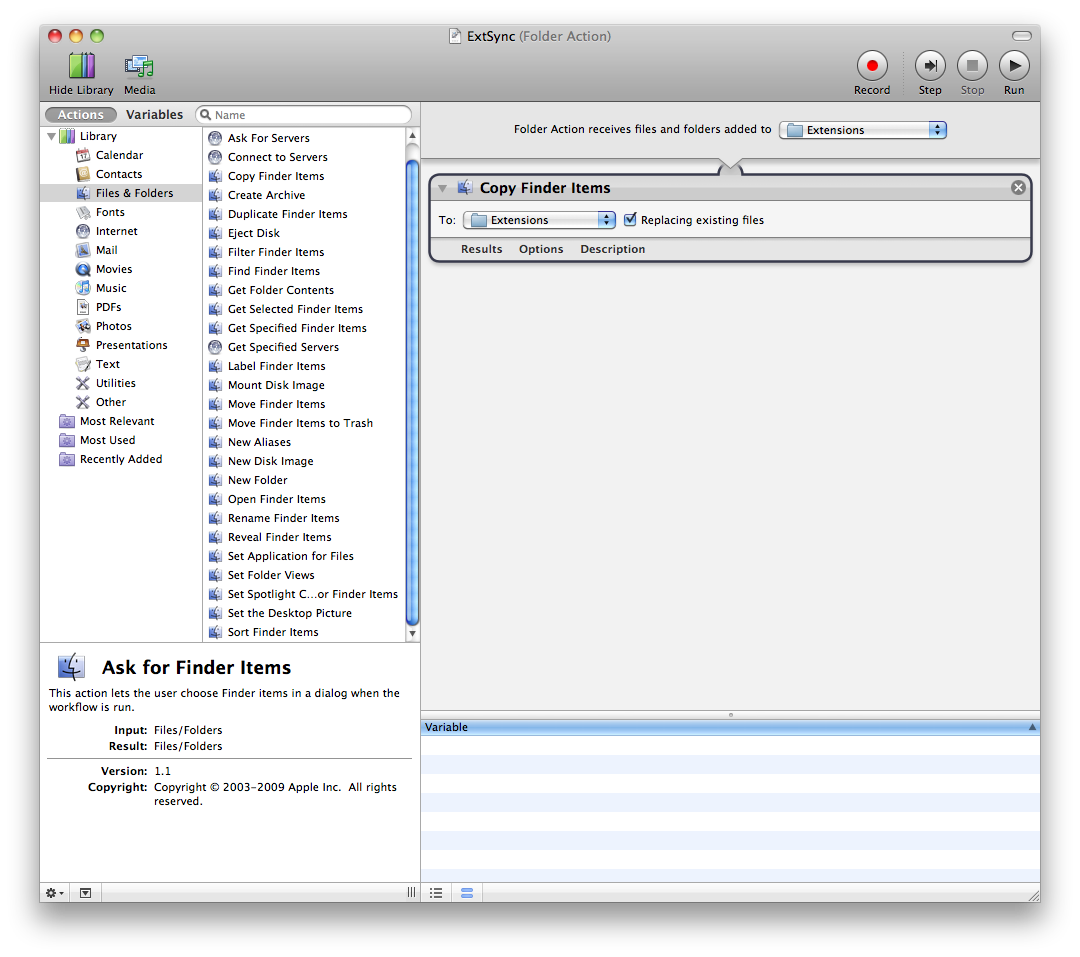
Screen shot 2010 06 15 at 4.56.16 PM 500x443 Keep your Safari 5 Extensions synced between your Macs

Now, create a new Folder Action. In the light grey bar in the panel on the right, click the drop down menu, and then select Other…

Navigate to the Extensions folder inside of your Dropbox folder, and then press the Choose button.

Type “Open Finder Items” in the search field, and then drag the result of the same name to the grey action panel on the right.

Under the “Open with” drop down menu, select Safari.

Now go to File > Save As, and save it as ExtSync2.

Now, theoretically, all of your Extensions will sync to your Dropbox account, and then it will automatically open the new extensions, and ask you to install them on your second computer.

If you see any mistakes, or if you know of an easier way to accomplish this, please comment on this post, or hit me up on Twitter.

Screen shot 2010 06 15 at 5.10.30 PM 500x443 Keep your Safari 5 Extensions synced between your Macs

Want more Apple coverage? We're all over the place. You can follow us on Twitter or become a fan on Facebook. You can also subscribe to our RSS feed

This post was written by:

Grant Brünner - who has written 1271 articles on Macgasm.

Grant is a writer and new media producer from Delaware. Here at Macgasm, he writes the Apple A Day column, and he produces/co-hosts the daily podcast.In his spare time, Grant maintains a personal blog and a weekly podcast.

Contact the author

12 Responses to “Keep your Safari 5 Extensions synced between your Macs”

  1. MariusTh86 Says:

    Or you can hit up the terminal and make a softlink (somewhat like an alias) and keep the folder automatically synced without any external help.

    Reply

    • Joshua Schnell Says:

      Have any details on that method? We’d love to hear them. :)

      Reply

      • Luke Hartman Says:

        To use a softlink and have this happen automatically, do the following:

        1. Move your Extensions folder (from /Library/Safari) to your Dropbox folder (/Dropbox by default)
        2. Open up the Terminal application (/Applications/Utilities)
        3. Type the line below

        ln -s ~/Dropbox/Extensions/ ~/Library/Safari/Extensions

        The third step creates a symbolic link (like an alias as MariusTH86 notes) so that when Safari looks for the Extensions folder, it is redirected to the shared folder on Dropbox, which will sync automatically.

        On other computers, first move any extensions not on the first machine from the Extensions folder in Library/Safari/Extensions to the Extensions folder in Dropbox, then delete the folder in Library/Safari/Extensions (if you copy the whole folder as in step 1, you will overwrite the first lot of extensions. Then, type the line from step 3 this second Mac.

        Hope this helps. It’s working so far for me.

        Reply

  2. Mike Cohen Says:

    Just open the terminal and type:

    cd ~/Dropbox
    ln -s ~/Library/Safari/Extensions .

    Reply

  3. Jake Says:

    cd ~/Dropbox
    ln -s ~/Library/Safari/Extensions Extensions

    That will create a symbolic link between your extensions directory and a directory in your Dropbox called “Extensions”. The two folders will sync (actually the latter is just a pointer to the former, but regardless) without you having to do anything.

    Reply

  4. Rob Wilkerson Says:

    @Joshua

    It’s pretty straightforward. Here’s what I did (your storage location within your Dropbox directory may differ):

    $ mv ~/Library/Safari/Extensions ~/Dropbox/AppSupport/safari
    $ ln -s ~/Dropbox/AppSupport/safari/Extensions Extensions

    That’s it. Dropbox now owns the physical files and happily syncs them while your Safari install just knows to look there when accessing extension info.

    Reply

  5. MariusTh86 Says:

    Alright, first open up the terminal, and enter the following commands

    First go to the dropbox folder where you want the extensions saved:
    cd /path/to/dropbox/

    Then make a soft link from your safari extensions folder to softlinkname inside your dropbox:
    ln -s ~/Library/Safari/Extensions softlinkname

    Now your items are synced over dropbox as soon as you add them to safari, now for the setup on the 2nd Mac:

    Navigate to your safari extensions folder, and remove it (because you’re going to use the softlinked version instead)
    Then open up the terminal and also navigate to the safari folder:
    cd ~/Library/Safari

    Then make a softlink from the folder with your extensions inside your dropbox to the Safari folder and name it Extensions to replace the one you removed:
    ln -s /path/to/dropbox/softlinkname Extensions

    And that’s it, you can now add extensions to either Safari copy and it’ll be automatically synced between computers without any further user interaction required. though probably not for those who are afraid of the terminal ;)
    (Also, I’m not entirely sure how well it will do if you keep both Safari’s open at both computers at the same time.)

    I hope that was a thorough and understandable explanation!

    Reply

  6. Jason Madigan Says:

    cd ~/Dropbox
    mkdir SafariExtensions
    cp -r ~/Library/Safari/Extensions/* ~/Dropbox/SafariExtensions/
    ~/Library/Safari/Extensions/
    ln -s /Users/USERNAME/Dropbox/SafariExtensions ~/Library/Safari/Extensions

    Reply

  7. Kyahx Says:

    $ cp -r ~/Library/Safari/Extensions ~/Dropbox/
    $ rm -r ~/Library/Safari/Extensions
    $ ln -s ~/Dropbox/Extensions/ ~/Library/Safari/Extensions

    Reply

  8. Dave Arter Says:

    To symlink your Extensions directory from your Dropbox:

    0. Quit Safari (it might freak out if you mess with the Extensions dir while it’s running)
    1. Open Terminal
    2. cd ~/Library/Safari
    3. mv Extensions Extensions.old
    4. ln -s ~/Dropbox/Extensions .
    5. Done! Fire up Safari and check it worked.

    Note: I’ve not tested this myself.

    Reply

    • Dave Arter Says:

      Note also: This depends on you having created the Extensions directory inside your Dropbox already, and would obviously need to be run on as many Macs as you want to keep in sync.

      Reply


Trackbacks/Pingbacks

  1. [...] article on Macgasm discusses how to keep your Safari 5 Extensions synced between your Macs. While this is a nice solution, symbolic links and the excellent, free Dropbox (referral link if [...]

Leave a Reply