With Mac OS X being based on BSD Unix and being UNIX 03 Compliant you have many of the same features of Linux. One of those features is the “˜shell’ or command line interface, commonly known as Terminal. The default shell for Terminal is bash. You can read all about the Bourne Again Shell (BASH) here on Wikipedia.
One aspect of bash is the ability to set defaults for each Terminal session. This is done from your ~/.bash_login file. You can set many options within this file, including Java environment variables and almost any setting you can think of. One of the most important is the PATH variable.
What is a PATH Variable?
The PATH Variable tells the system where to look for applications. So, if you were to try and run a Unix command, “˜top’ for instance, the shell would have to know where to look for it. If the application is not within the default locations, it’ll say it cannot find it.
Let’s take a look at what a PATH statement within a .bash_login file looks like:
PATH="/usr/bin:/bin:/usr/sbin:/sbin:/usr/local/bin:/usr/X11/bin:$PATH"
Let’s break this down. The first part, “PATH” tells the shell to set the variable PATH to what follows. Each path is separated by a colon. Much like a comma separated value file, the colon in this case is the delimiter for each path. So /usr/bin/, /bin/, /usr/local/bin, and usr/X11/bin are each individual paths to possible application locations.
The $PATH variable specifies to include any default PATH locations. It’s also used to append additional locations onto the PATH variable.
To see what your current $PATH variable is, go to Terminal by either using spotlight to find it or by going to Your Applications -> Utilities -> Terminal application. Once Terminal loads, type
echo $PATH
This will display your current $PATH Variable.
How to Add a New Location to PATH
Now, if you need to add a new search location you will have to do a few things in order to get this to stay across all of your Terminal sessions. From within Terminal follow these steps:
- Type in cd ~. This will bring you to your home directory.
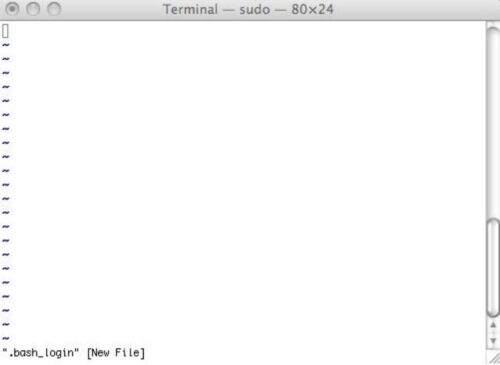
- Type sudo vi .bash_login
- Type in your root password
- You might see a screen that looks like this:
- Type i for Insert
- If your file is new, type in
PATH=$PATH:/path/to/look/for/new/apps/:
If you already have items in your PATH=”¦ statement just append the “:/path/to/look/for/new/apps/:” to the end of your PATH statement
- Hit Escape to stop editing
- Type :wq (this will write the file and then quit)
- While still within Terminal, type exit
- Close Terminal
- Open up Terminal again
- Type in echo $PATH to verify that the path has been saved. If not, try it again.
Those are the basics of adding a new location to search for apps within Terminal. It’s not something that will come up all the time, but it’s a good thing to know in case it ever does.